Adding engaging animations to your website can significantly enhance user experience by drawing attention to key content and creating a more dynamic feel. While many assume that incorporating animations requires complex coding knowledge, tools like Animate.css and intuitive website builders make it surprisingly straightforward. Whether you’re a seasoned developer or a complete beginner, you can elevate your site’s design with minimal effort by leveraging these resources.
In this guide, we’ll explore the simplest ways to incorporate popular CSS animations into your website. We will focus on universal methods compatible across different platforms, introducing both manual coding techniques with Animate.css and effortless options with Pagecloud, a user-friendly site builder that requires no coding at all. By the end, you’ll understand how to add eye-catching motion effects that captivate visitors and improve engagement.
What Are CSS Animations?
CSS, or Cascading Style Sheets, is a fundamental technology used by web browsers to style HTML elements, controlling everything from fonts and colors to layout and responsiveness. Among these styles, CSS animations enable smooth transitions of elements from one visual state to another, adding movement and interactivity to your pages.
For those new to coding, CSS animations might seem complex. However, with the right tools, you can harness their power without deep technical expertise. For example, simple animations like fading in text or sliding images across the screen can be achieved with straightforward code snippets, making your website feel more lively and professional.
Introducing Animate.css
Create by Daniel Eden, Animate.css is a popular open-source library comprising a collection of pre-made CSS animations that are easy to implement. As of 2019, it offers over 70 different animation styles, such as bounce, fade, slide, and flip, allowing you to animate elements with just a few class additions.
Here’s an example of how Animate.css simplifies animation implementation:
“`html
“`
This code adds a bounce effect to the text. The beauty of Animate.css is that it reduces hours of manual CSS coding into a simple class addition, making it accessible for all skill levels. Plus, since it’s open-source and free, you can incorporate it into any project without licensing concerns.
How to Use Animate.css in Standard Web Development
Step 1: Obtain the stylesheet by either downloading it from the official repository or linking directly via CDN:
html

<link rel="stylesheet" href="https://cdnjs.cloudflare.com/ajax/libs/animate.css/4.1.1/animate.min.css"/>
Step 2: Apply animation classes to your HTML elements. Typically, you include the animate__animated class along with a specific animation name like animate__fadeIn. For continuous animations, add the animate__infinite class:
“`html
“`
You can customize animations further by adjusting properties such as duration, delay, and iteration count through CSS or inline styles. For instance, to modify the timing:
css

.animate__fadeIn {

  --animate-duration: 2s;

}
If you’re comfortable with CSS, you can tweak these settings for tailored effects. For more advanced animations, exploring resources like W3Schools or GitHub provides comprehensive guidance.
Simplified Animation with No Coding: Using Pagecloud
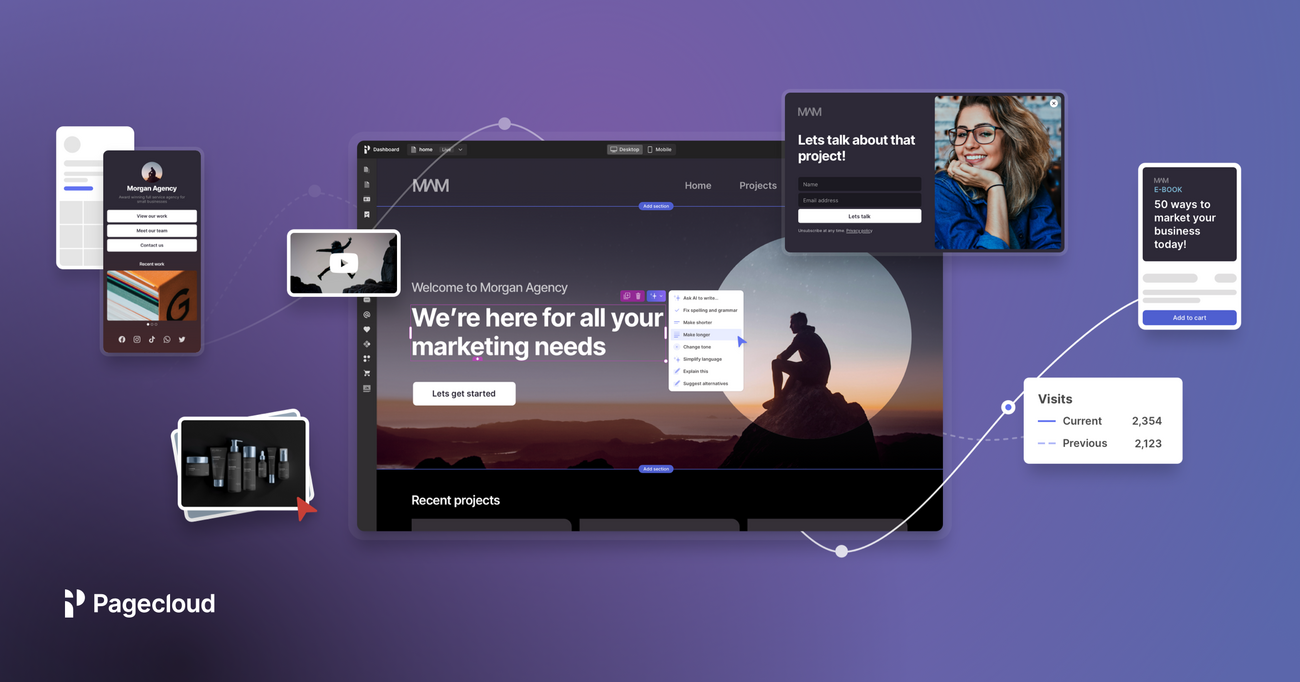
For those who prefer to avoid coding altogether, Pagecloud offers a straightforward way to animate your website elements visually. Here are two simple methods:
Method 1: Upload and Link Animate.css Files
- Download the Animate.css file from its official source.
- Log into your Pagecloud account and open the page you wish to modify.
- Drag and drop the Animate.css file onto your page.
- Select the element you want to animate, go to the “Advanced” settings, and add classes such as
animated bounce. - Save and preview your site live.
Method 2: Use Predefined Scroll Animations
- In Pagecloud, drag an “On scroll animation” module onto your page.
- Select the element to animate.
- In the “Advanced” menu, input the animation name, like
fadeInUp. - Save and view the animation in action.
This approach allows you to add motion effects effortlessly, making your site more engaging without touching a line of code. To learn more about creating professional websites with smooth animations, consulting resources like streamlining web design project management can be beneficial.
Best Practices for Using Animations Effectively
While animations can enhance your website’s appeal, moderation is key. Overusing effects may distract visitors or slow down your site. Use animations purposefully to highlight important content or guide user attention. Subtle effects like fade-ins or slide-ins often work best when applied sparingly.
If you’re interested in mastering the art of animations, the Animation Handbook offers valuable insights into creating impactful motion effects. Remember, thoughtful animation can elevate your website from ordinary to extraordinary.
Final Thoughts
Adding animations to your website is more accessible than ever, whether through simple CSS libraries like Animate.css or intuitive tools like Pagecloud. Even if you’re new to web development, these methods empower you to create visually compelling sites without extensive coding knowledge.
Furthermore, investing in professional web design can be a game-changer. Exploring top agencies specializing in healthcare websites, for example, can help you craft a polished online presence. For guidance on selecting the best partners, check out top healthcare web design firms.
Enhance your website today with captivating animations that engage visitors and boost your online success. With the right tools and strategies, creating a stunning, animated website is within your reach.