Creating an attractive and functional website is essential for businesses and individuals aiming to establish a strong online presence. Canva, renowned for its versatility in graphic design, has become an innovative tool that allows users to craft visually impressive websites and landing pages with ease. While many associate Canva primarily with designing social media graphics or event flyers, it also offers the capability to create fully operational websites—making it an excellent choice for beginners and experienced designers alike.
This comprehensive guide will walk you through the process of creating a website on Canva, leveraging its intuitive interface and powerful features. Whether you’re a CEO, digital marketer, or a freelance designer aiming to expand your client base, you’ll discover valuable insights and practical tips to elevate your online projects.
Why Opt for Canva When Building a Website?
In a crowded market filled with website builders like Wix and WordPress, Canva offers a unique, design-focused approach. It grants users complete control over the visual elements, enabling the transformation of intricate Canva designs into fully functional websites. You’re not confined to standard templates; instead, Canva allows seamless integration of videos, icons, images, and custom text, all within a user-friendly drag-and-drop environment.
Furthermore, Canva makes it straightforward to create mockups and prototypes of your website directly within the platform. This flexibility is especially useful for those looking to craft personalized, visually compelling pages without extensive coding knowledge. If you’re interested in enhancing your freelance web design business, understanding how to attract more clients can significantly benefit your growth; for insights, explore ways to attract more web design projects.
While Canva isn’t a replacement for dedicated website development tools, its ease of use and design capabilities make it an excellent starting point for creating impressive landing pages and websites quickly.
Step-by-Step Guide to Creating a Website on Canva
Embark on your web design journey by following these clear, straightforward steps.
1. Setting Up Your Canva Account
Start by registering for a free Canva account. Its simple registration process and versatile features make it accessible for newcomers and seasoned designers alike. Canva’s free version offers ample tools for creating basic websites, but upgrading to Canva Pro unlocks advanced features like the Brand Hub, which helps maintain brand consistency across all your design assets—a valuable asset when building professional websites.
2. Exploring Canva Templates
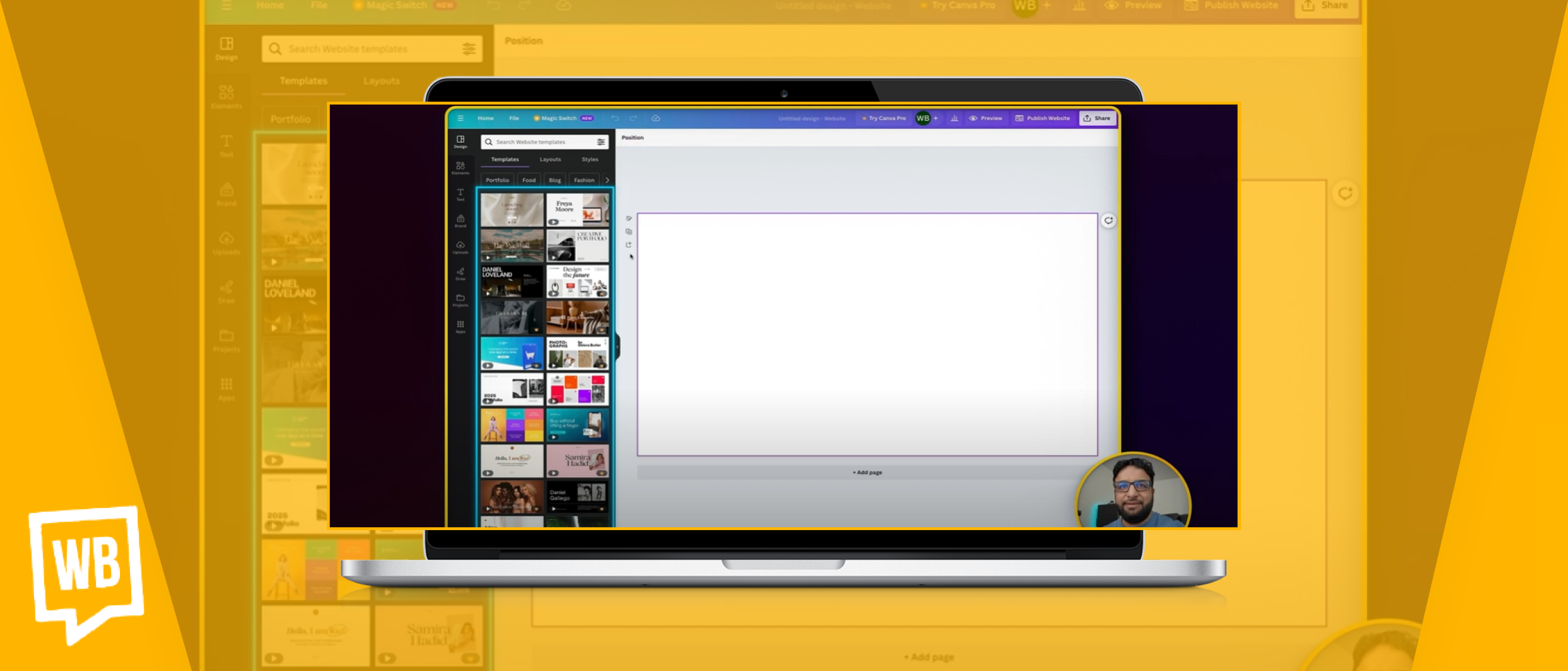
Once logged in, head over to the “Projects” section and click on “Create Design.” Enter “website” in the search bar to browse a variety of templates tailored for web pages. Canva provides numerous options suited for different purposes, from portfolios to business landing pages. Choose a template that aligns with your vision by clicking to open it in the editor.
3. Customizing Your Website Design
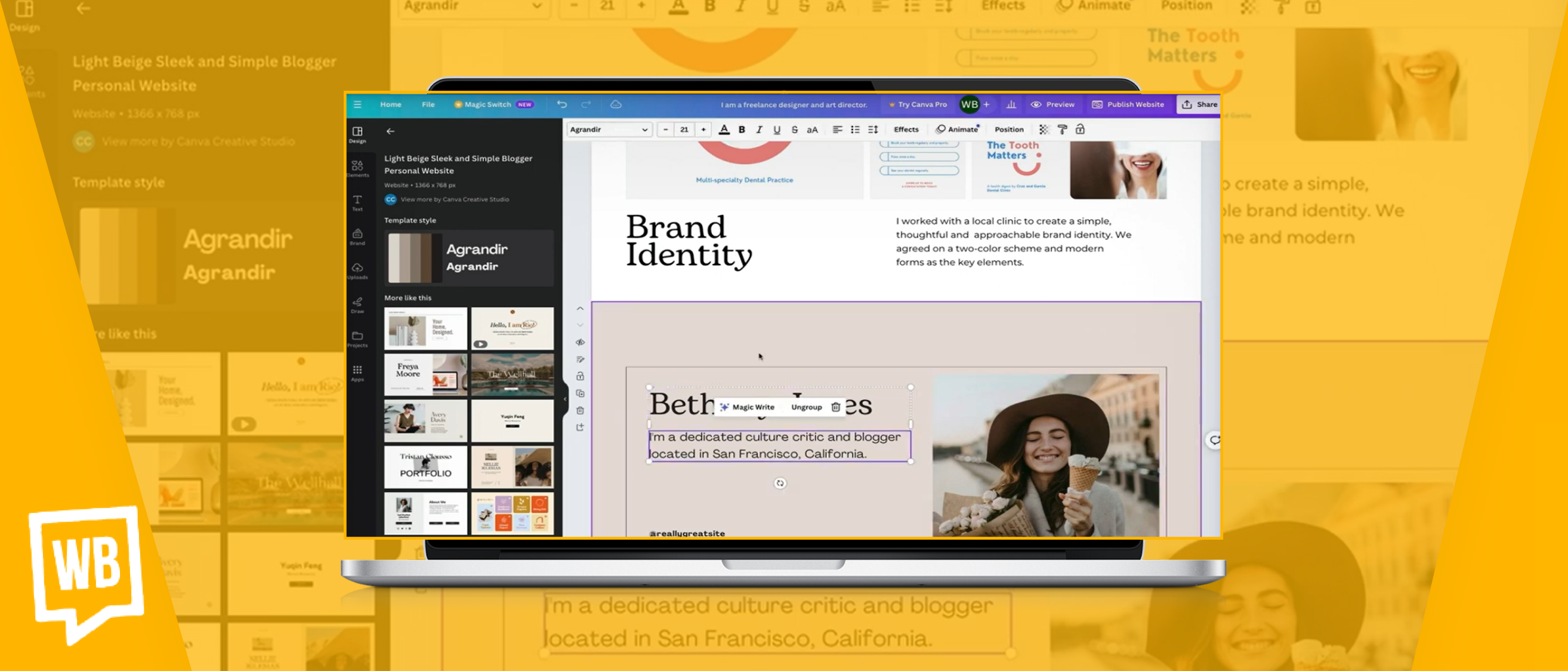
Once your template loads, you can start tailoring each section. Canva’s drag-and-drop interface allows you to modify text, swap images, and change colors effortlessly. To update multiple pages, click “Apply all X pages” on the left sidebar. You can also add or remove pages with the “+ Add page” button. Adjust page sizes by dragging the edges to match your preferred dimensions. Fine-tune every element until your website reflects your brand identity or personal style.
4. Adding and Editing Components
Canva supports the integration of diverse components, including text blocks, images, videos, and icons. To edit text, simply click on the text box to type your content or resize it as needed. Replace images by clicking on them, deleting, and uploading new visuals via the “Uploads” tab or selecting from Canva’s extensive gallery. Incorporate icons or videos through the “Elements” tab for a dynamic and engaging site.

5. Embedding Links and External Media
Embedding videos enhances your website’s interactivity. Drag your video file or insert a YouTube link directly into Canva. To add links to specific elements, right-click the component, select “Link,” and enter the desired URL. This allows visitors to navigate to your services, contact forms, or external resources seamlessly. For more advanced external integrations, such as scheduling tools, explore embedding options like Calendly or other third-party platforms.
6. Finalizing Your Design
After adding all necessary elements, refine your webpage by applying color schemes for consistency and ensuring visual harmony. Use the “Preview” button to see how your site will appear on desktop and mobile devices. Check the mobile view by clicking the smartphone icon, ensuring your design is responsive and user-friendly across devices.

7. Publishing Your Website
When satisfied, click “Publish” in the top right corner. You can choose a free Canva domain or connect your custom domain if you have one. Fill in your site’s URL, title, and description—optimize these for search engines to improve visibility. Once everything is set, hit “Publish” to make your website live. Canva provides a straightforward publishing process, allowing you to quickly showcase your work online.

Pro Tips for Creating an Effective Canva Website
Enhance your website’s appeal and functionality by applying these expert strategies:
-
Leverage Canva’s Brand Hub: Upgrading to Canva Pro grants access to the Brand Hub, where you can set your brand colors, fonts, and style guides, ensuring consistency across your website and marketing materials. Discover more about strategies to attract more freelance web design clients.
-
Add Interactive Features: Incorporate external tools such as scheduling apps like Calendly or embed forms to increase user engagement.
-
Use Animations: Animate text and elements within Canva to create more lively and attention-grabbing landing pages.
-
Utilize AI Writing Tools: Canva’s AI features can assist you in crafting compelling headlines and content, streamlining your copywriting process.
-
Track Engagement: Use Canva’s insights to monitor visitor interactions, helping you refine your design and content strategies.
-
Create Multilingual Sites: Duplicate pages and translate content to cater to a global audience while maintaining visual consistency.
-
Customize Favicon and SEO Elements: Enhance your site’s professionalism by selecting an iconic favicon and optimizing your page titles and meta descriptions for better search engine ranking.
-
Post-Publication Edits: Easily update your site after publishing to fix issues or add new content, ensuring your website stays current.
-
Optimize for Search Engines: Use Canva’s SEO tools to add meta tags and descriptions, increasing the chances of your site being found organically.
-
Troubleshoot and Follow Best Practices: Familiarize yourself with Canva’s help resources and design principles to resolve common issues and ensure a cohesive, attractive website.
Frequently Asked Questions
1. Why is Canva a good choice for website creation?
Canva offers a highly visual, design-driven platform that provides full control over your website’s aesthetics. It allows you to convert detailed designs into live sites, integrating videos, icons, images, and text seamlessly.
2. Can I preview and publish my site directly from Canva?
Yes. Canva’s “Preview” feature shows how your website appears on various devices. When ready, use the “Publish” option to host your site either on Canva’s free domain or your custom URL.
3. How does Canva Pro improve the website-building experience?
Canva Pro unlocks features like the Brand Hub, enabling you to create consistent branding across all your designs and websites, which is crucial for professional online presence.
4. Is it possible to add functionality to my Canva website?
Absolutely. You can embed videos, external scheduling tools, and interactive elements to make your website more functional and engaging.
5. Can I analyze visitor data and conversions?
Yes. Canva’s insights and analytics tools help you understand visitor behavior, allowing you to optimize your site for better engagement and conversion rates.
Conclusion
Designing a website with Canva is a powerful, efficient, and accessible way to establish your online footprint. Its intuitive interface, combined with advanced features like animation, AI assistance, and external integrations, empowers you to create professional-looking landing pages and websites without coding expertise. Whether you’re building a personal portfolio or a business site, following this step-by-step guide will help you craft a compelling online presence that resonates with your audience.
Ready to start your website journey? Dive into Canva’s platform and bring your digital vision to life today!